IPTVX feature guide

Every capability.
Explained clearly.

From the first playlist to advanced Live TV, recording, sync, and Media Server workflows: find the feature, follow the steps, and open the official tutorial when one is available.

30+ documented features Practical steps Official tutorials
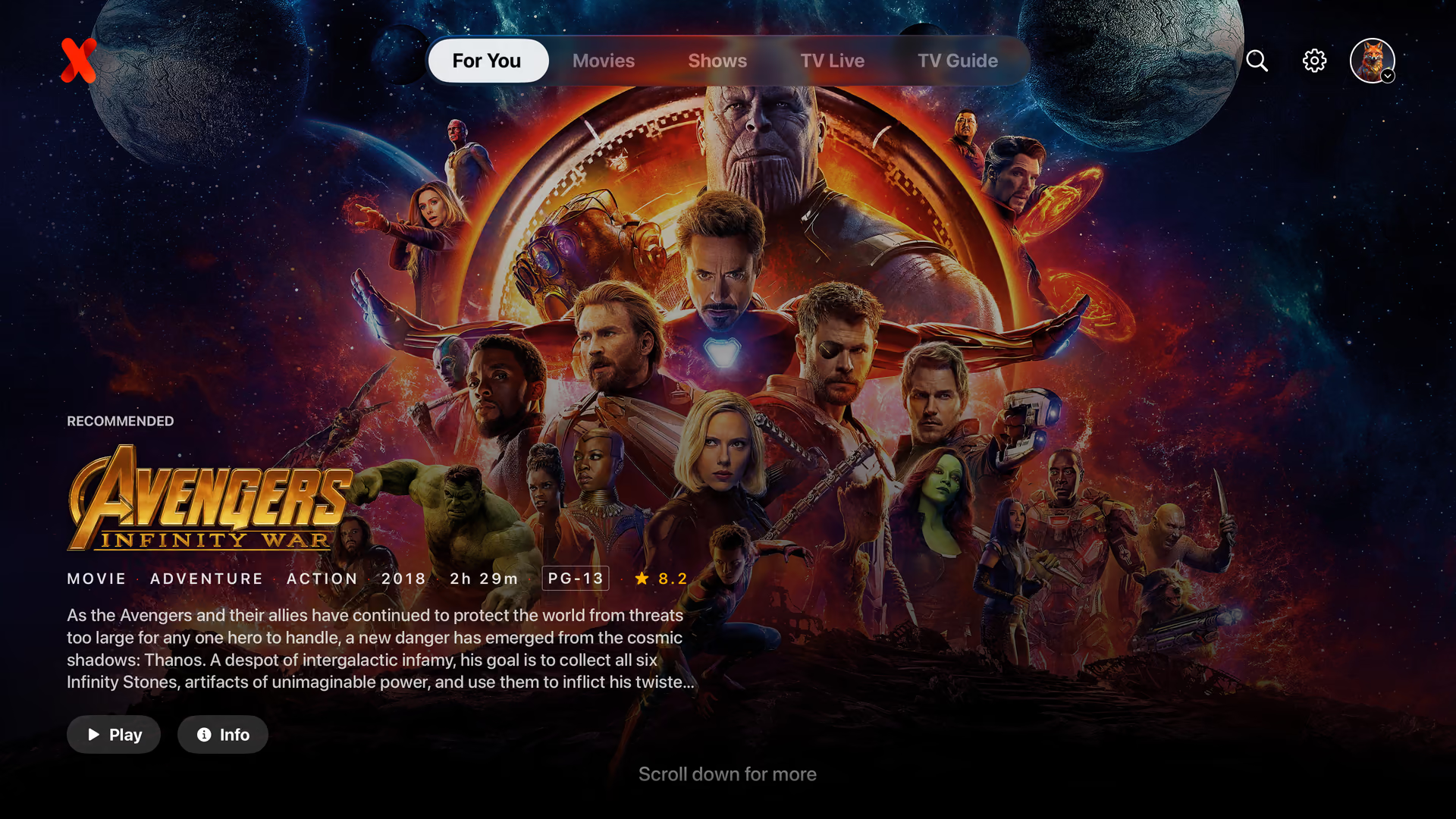
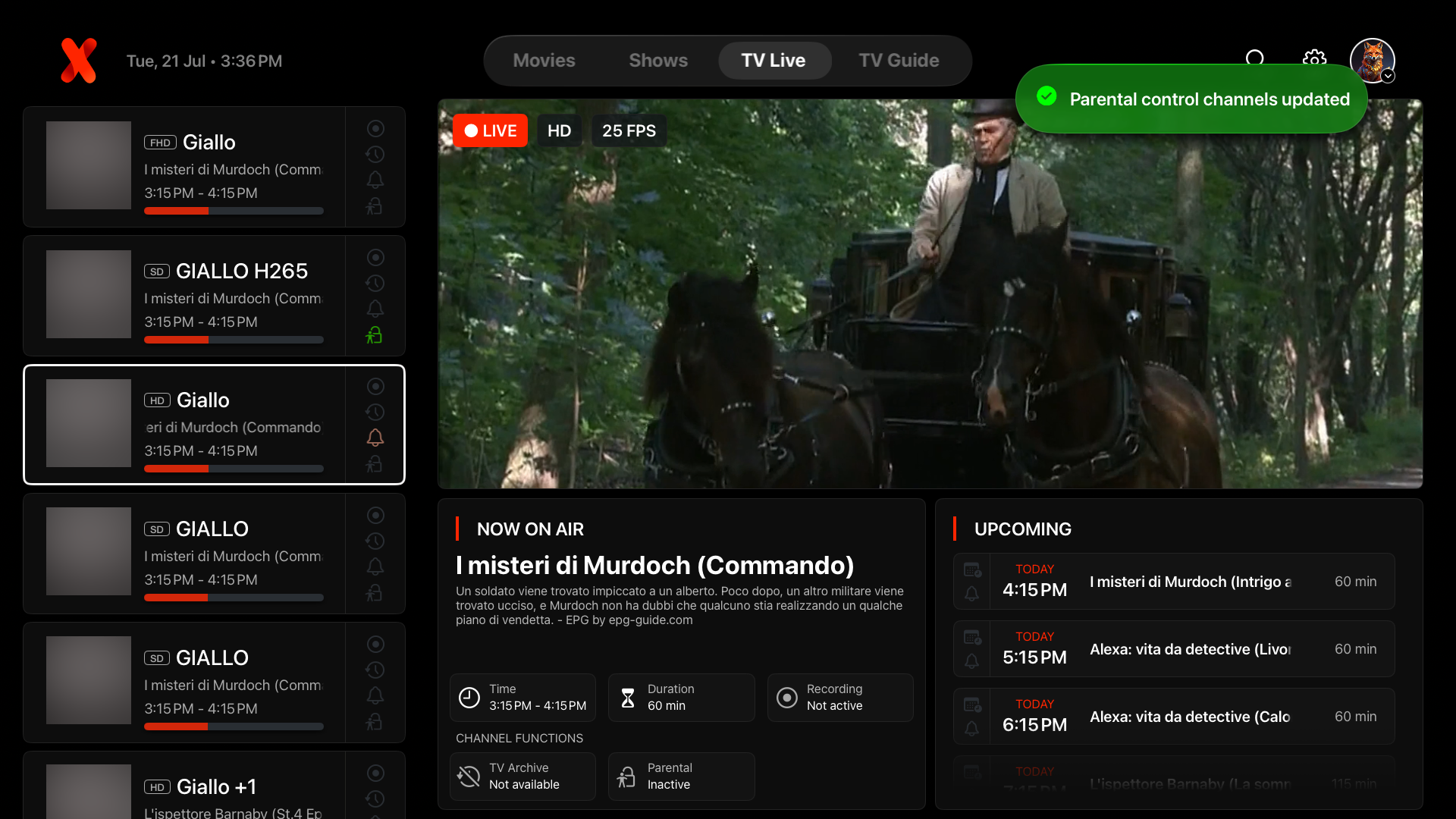
The redesigned IPTVX TV Guide on Apple TV
Real IPTVX interface The new TV Guide

Library & discovery

Turn raw playlists into a library.

Import, organize, search, and personalize even very large collections without losing your place.

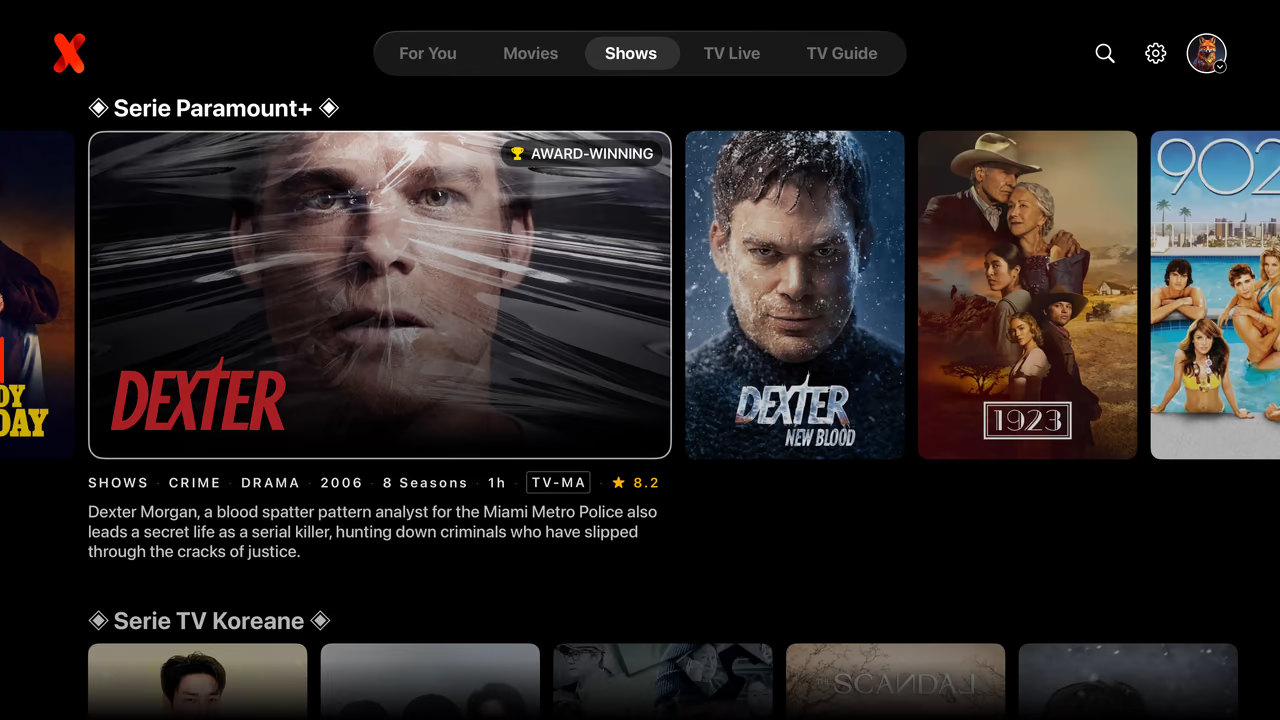
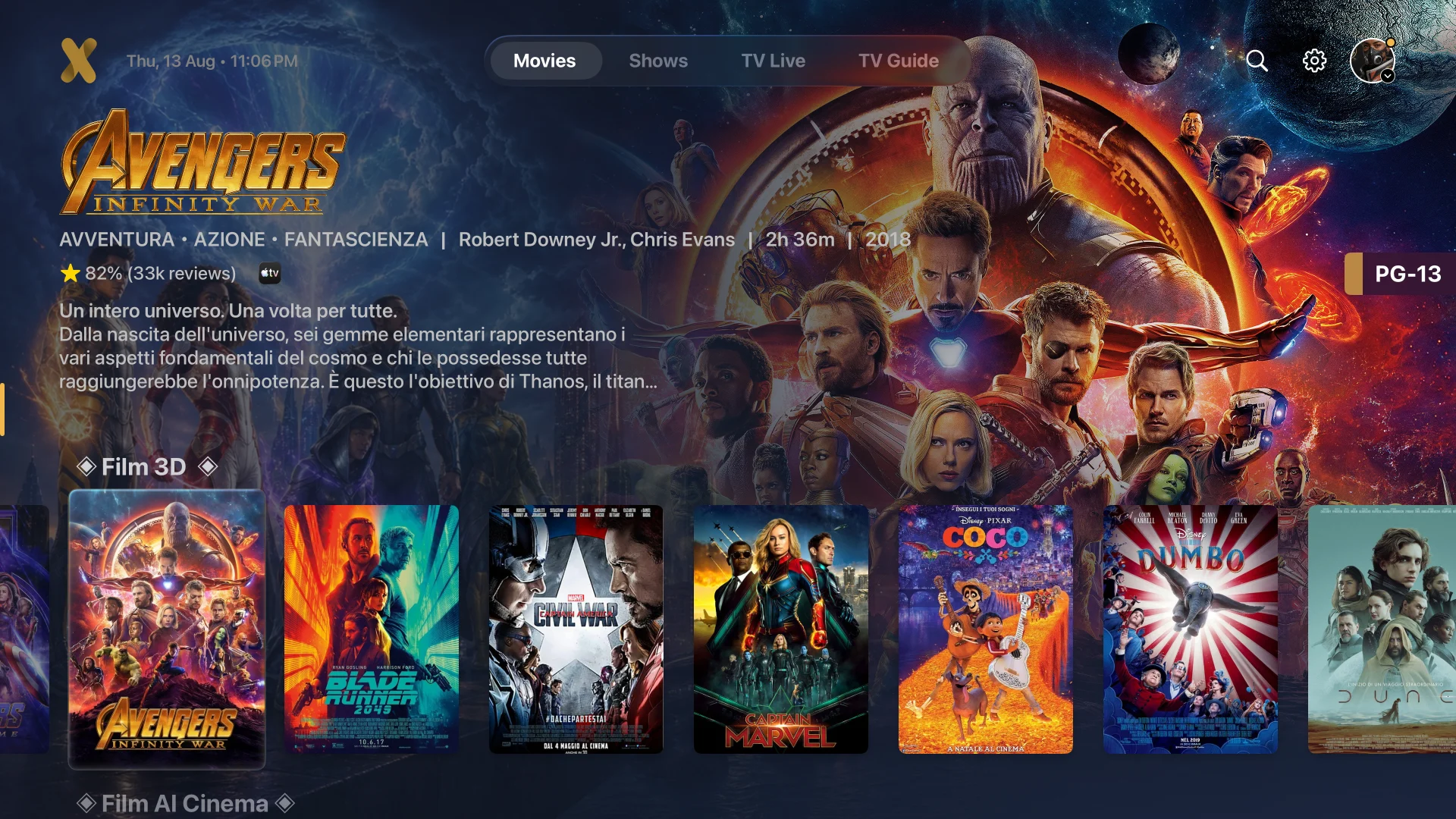
IPTVX movie library on Apple TV
01

Playlists that stay manageable

Add multiple playlists, protect sensitive ones with a PIN, rename categories, and arrange the library around the way you watch.

  1. Open the playlist manager and add your M3U, Xtream, or supported source.
  2. Edit its name, metadata, category order, and optional playlist PIN.
  3. Reload when the provider changes the source; IPTVX reuses indexed data to keep refreshes efficient.
Official YouTube videoNew design for playlists manager
02

Search, people, and smart discovery

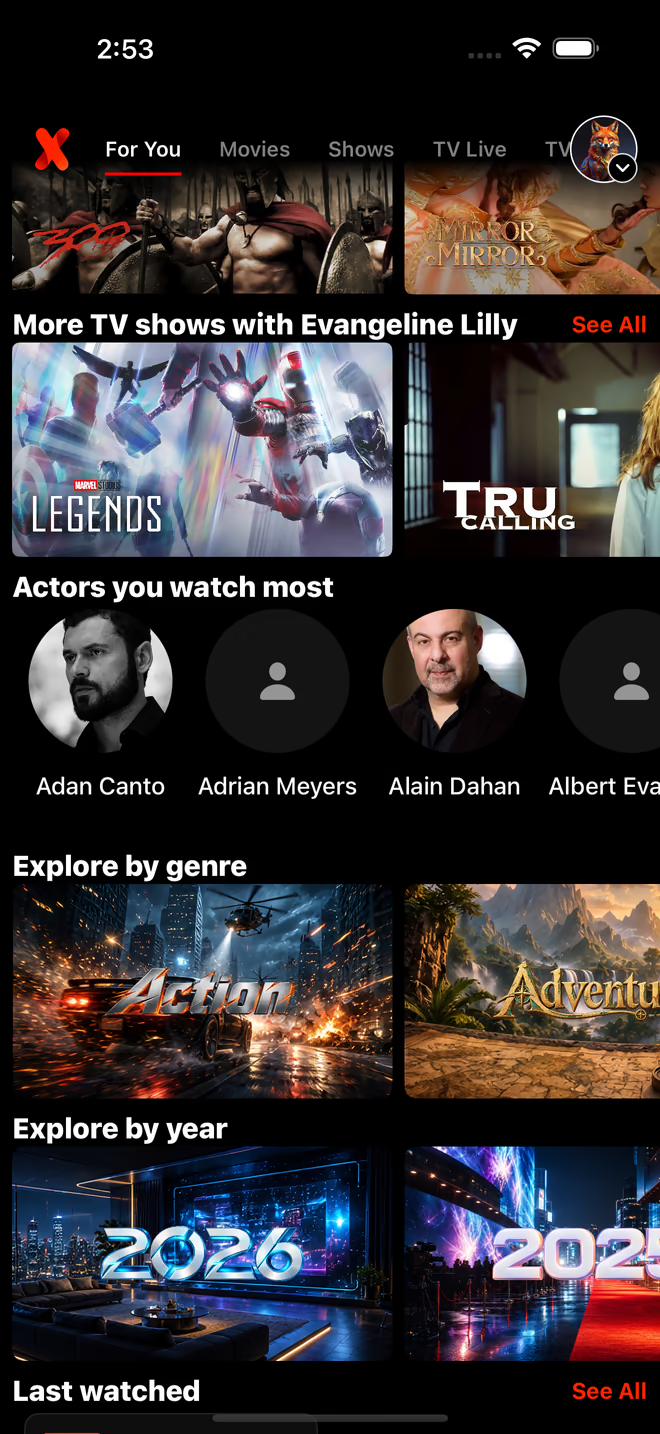
Search titles, live channels, people, actors, categories, and metadata, then move through recently added, recommended, trending, and special hubs.

  1. Open Search and choose the content area you want to explore.
  2. Search a title or person; actor pages collect matching movies and series when metadata is available.
  3. Use Recently Added, Recommended, Trending, and special hubs to continue without another search.
03

Favorites, tags, and watched state

Build focused lists with favorite tags, change their order, and use Last Watched, Already Watched, progress, and Continue Watching to resume quickly.

  1. Open an item or channel action and add it to Favorites, optionally assigning one or more tags.
  2. Reorder favorites and categories so the most useful groups appear first.
  3. Mark items watched when needed; IPTVX also tracks progress and the last item you played.
Official YouTube videoAdd to favorites WITH TAGS

Live TV

A guide you can actually control.

Search live channels, repair guide matches, set reminders, use catch-up, record, and watch multiple streams when the source and platform support it.

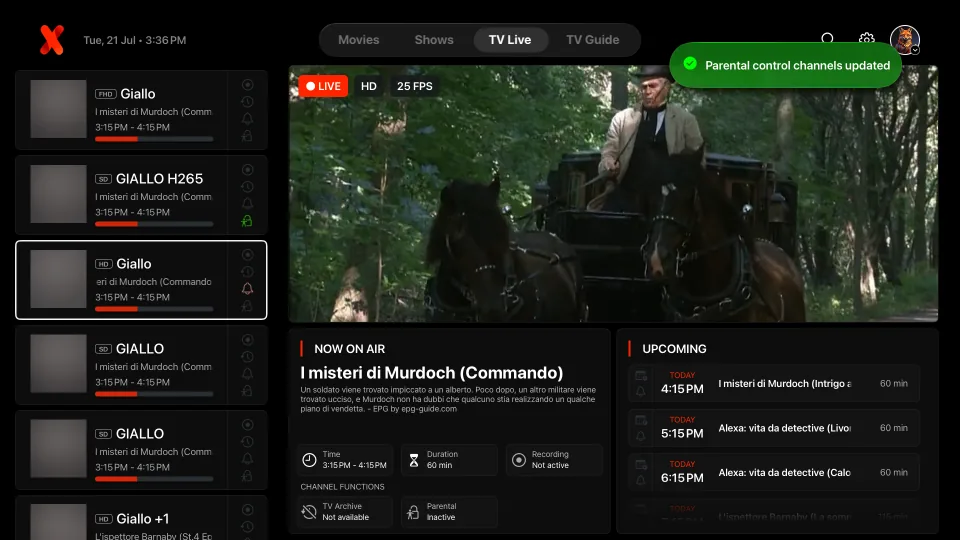
IPTVX Live TV controls on Apple TV
04

TV Guide, Custom EPG, and reminders

The redesigned guide combines the current programme, timeline, channel actions, archive state, recording state, and parental controls.

  1. Add a valid EPG URL to the playlist and refresh the guide.
  2. If a channel is wrong or empty, open its actions, choose Custom EPG, search, and save the correct match.
  3. Open an upcoming programme to add a reminder; allow notifications so the alert can be delivered.
  4. Use the clock or archive indicator to open past programmes when the provider supplies compatible catch-up data.
05

Multi-channel, recording, and AI Panel

Move between channels instantly, create a multi-channel view, open the Live AI Interactive Panel, or record through IPTVX Media Server.

  1. Start a live channel and use the player switcher to move between available internal players when needed.
  2. Open Multi-channel and add streams to the layout; actual limits depend on the device and provider connections.
  3. Open channel actions for AI Panel, immediate recording, or scheduled recording when supported.

Playback

Watch your way, not the player’s way.

Native playback features, queues, external subtitles, casting, and resilient iOS downloads are available when the stream and device support them.

06

PiP, AirPlay, casting, queue, and Skip Intro

Keep watching in Picture in Picture, send compatible streams to another screen, build a playback queue, and skip known intro ranges.

  1. Keep Player set to Auto so IPTVX can choose the native player whenever the stream is compatible.
  2. Start playback, then use PiP, AirPlay 2, casting, queue, or Skip Intro from the available controls.
  3. If a control is missing, try HLS or M3U8 and remember that fallback players cannot expose every system feature.
Official YouTube videoNative player, PIP and all new options
07

External subtitles and offline downloads

Connect OpenSubtitles for compatible VOD, or download movies and episodes into IPTVX app storage for offline playback on iPhone and iPad.

  1. Connect OpenSubtitles in Settings, open compatible content, and select an external subtitle result.
  2. For offline viewing, choose Download; additional items enter a reliable iOS background queue.
  3. Enable concurrent downloads in Settings → General if desired, and manage storage on the same device.
Official YouTube videoConnect OpenSubtitles

Sync & home

Continue on the screen that suits you.

Apple devices use your iCloud for app data continuity. TV account pairing and parental controls keep shared screens practical.

08

iCloud sync, phone pairing, and parental controls

Progress, favorites, hidden channels, playlists, and settings can follow your Apple account, while TV devices can be paired from a phone and protected for the household.

  1. On Apple devices, enable iCloud Drive and use the same Apple ID; reopen the playlist after giving CloudKit time to deliver changes.
  2. On a TV sign-in screen, scan or enter the pairing code on your phone and approve the IPTVX account.
  3. Use playlist PINs, hidden channels, and parental controls to restrict the areas that should not be available on a shared screen.
  4. Use supported universal app links to open the relevant IPTVX destination directly from the web or another app.

IPTVX Media Server

Make your NAS or Mac part of IPTVX.

Use the server to record, stream, and organize personal media under your control.

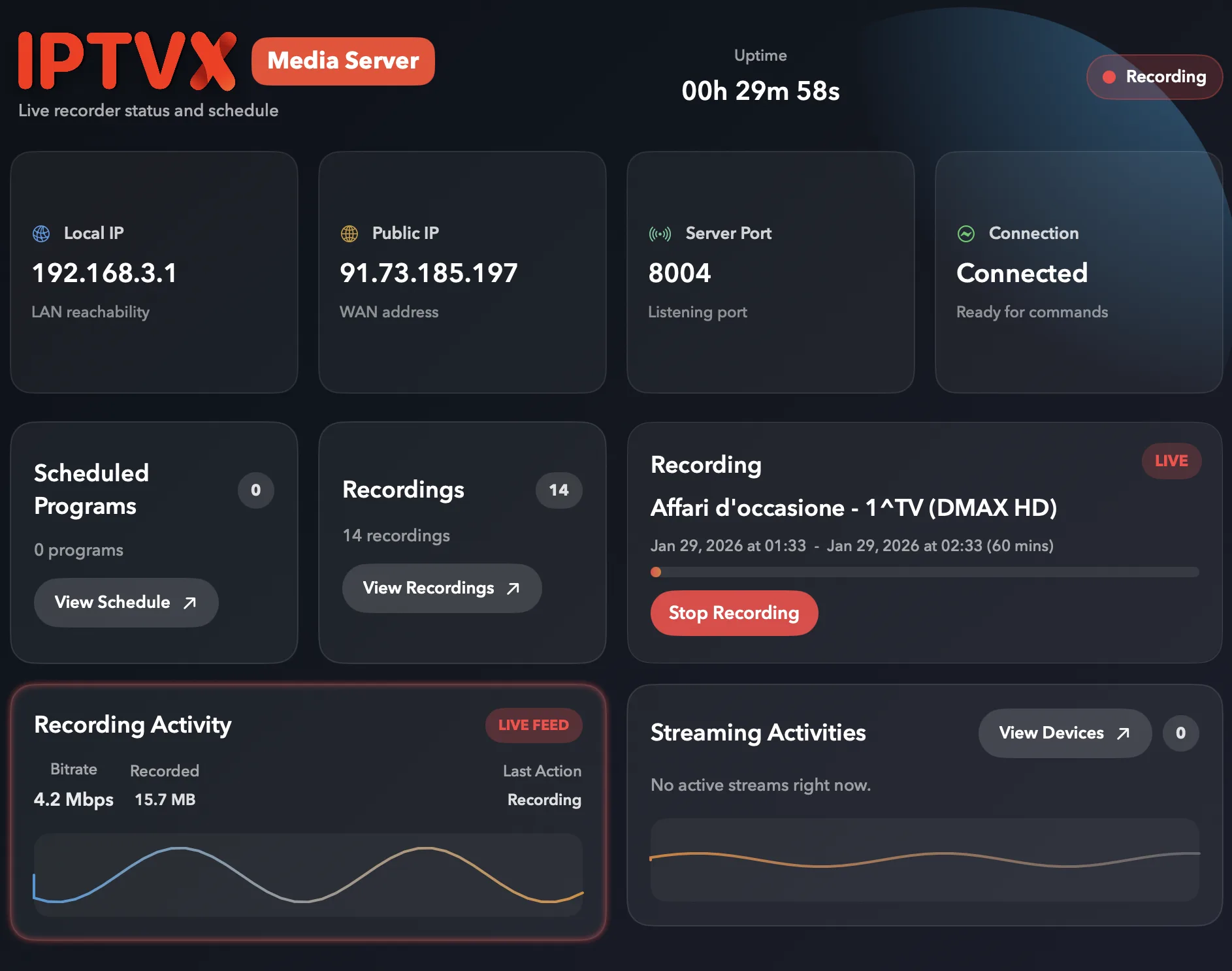
IPTVX Media Server web interface
09

Install, connect, and record

Install IPTVX Media Server on a supported NAS, Linux host, or Mac, connect it from IPTVX, then use live programme actions to create recordings.

  1. Choose the Synology package or generic NAS installation path on the Server page and complete the host setup.
  2. Open the server web interface, confirm storage and port settings, then add the server address inside IPTVX.
  3. From Live TV or TV Guide, choose Record now or schedule a supported future programme.
  4. Manage recordings and personal media from the server and IPTVX clients.
Open the complete Media Server guide →

Add-ons

Change the entire visual world.

Special Themes can combine a skin, cinematic backgrounds, custom app icon, and exclusive avatars into one coordinated identity on supported Apple devices.

A cinematic IPTVX Special Theme on Apple TV
10

Preview and activate a Special Theme

Browse the growing collection inside IPTVX, inspect the complete package, and activate the visual world you want.

  1. Open Add-ons → Themes & Appearance on a supported device.
  2. Open a package to preview its skin, icon, avatars, and backgrounds.
  3. Complete the in-app purchase where available, then choose Use to activate it.
Explore the complete Add-ons gallery →

Performance

Large libraries should still feel immediate.

Playlist parsing, artwork, metadata, EPG, memory, scrolling, and progressive loading are treated as product features, not afterthoughts.

11

Refresh efficiently and diagnose source delays

IPTVX indexes useful content first and hydrates heavier metadata progressively, while provider speed and guide quality still determine what can arrive.

  1. Reload the playlist after a provider change; indexed data is reused where possible.
  2. If loading remains slow, test the playlist and EPG URLs on the same network.
  3. When reporting a repeatable slowdown, include device, OS, playlist type, approximate library size, and whether artwork or EPG is involved.
Official YouTube videoReload playlist efficiency improvements

Complete index

The capabilities at a glance.

Availability can vary by platform, OS version, stream format, subscription, and provider support.

Multiplatform sync Multi-channels Unlimited playlists Playlist PIN lock Reliable background downloads (iOS) External subtitles Live TV search & programme reminders Phone pairing for TV accounts Universal app links Video casting AirPlay 2 audio + video Picture in Picture Playback queue Custom favorites order Categories custom order Skip intro Realtime inner player switch Chronological channels Recently added Recording Special content hubs Recommended for you Trending this week Custom metadata Custom category names Last watched Already watched Search by actor Favorites with tags Live AI Interactive Panel