IPTVX 25: the new For You, Movie Page and Search.
The big change in IPTVX 25 is discovery: the new For You brings together dozens of new rows and collections to help you find your next movie or show. What you watch helps shape title, actor and genre recommendations; ratings, awards and Explore collections add other ways in. Here is how it works, alongside the redesigned Movie Page, Search and iOS Downloads.
A preview of the redesign for iOS and tvOS. Availability depends on the app version and supported features on your device.
Official launch film
IPTVX 25 — A New Perspective
Discover For You, the redesigned VOD experience and title pages, genre and year discovery, Search and Downloads — on Apple TV and iPhone.
Optional subtitles: English, Italian, French and Spanish.
01 / 7 · What is new
For You: dozens of discoveries, shaped around you
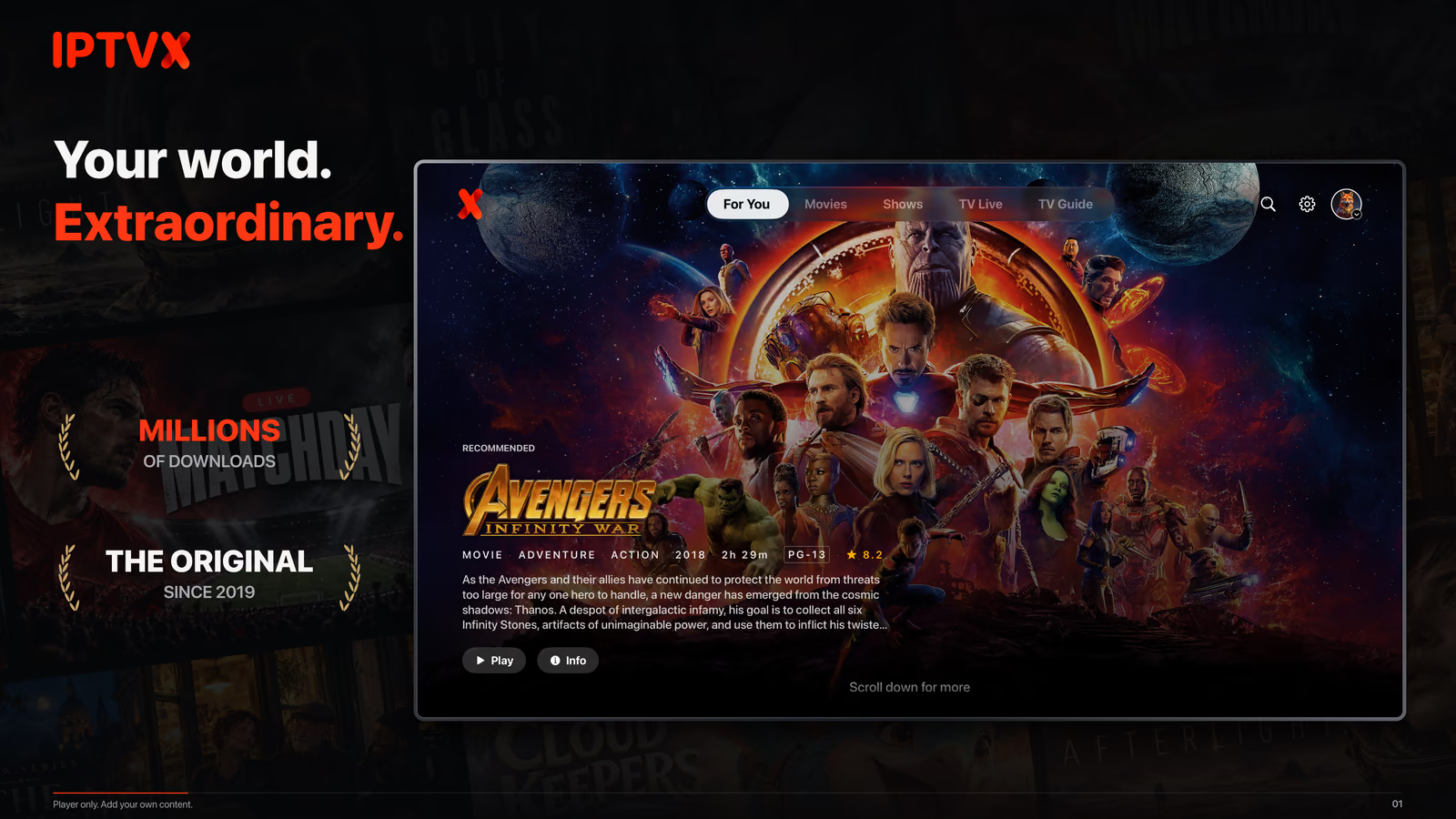
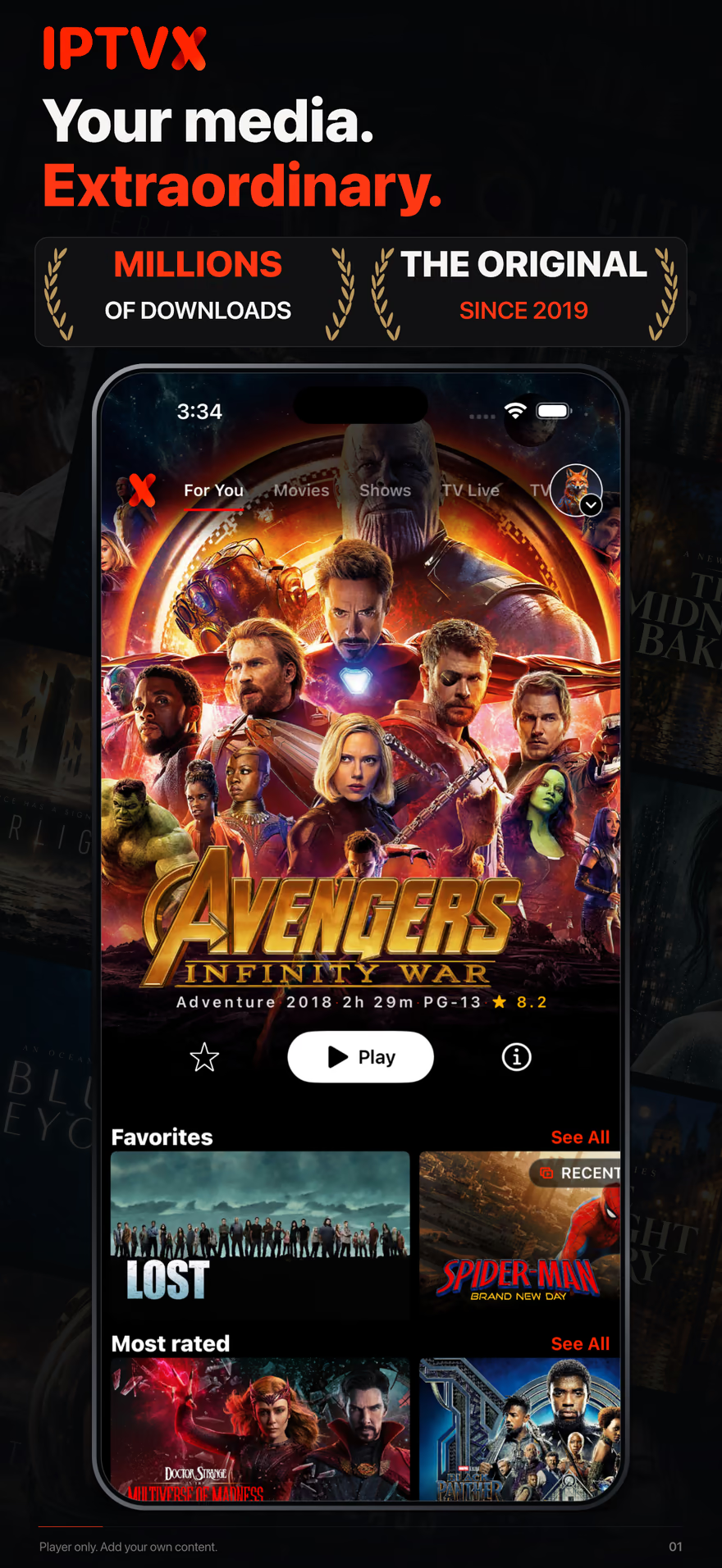
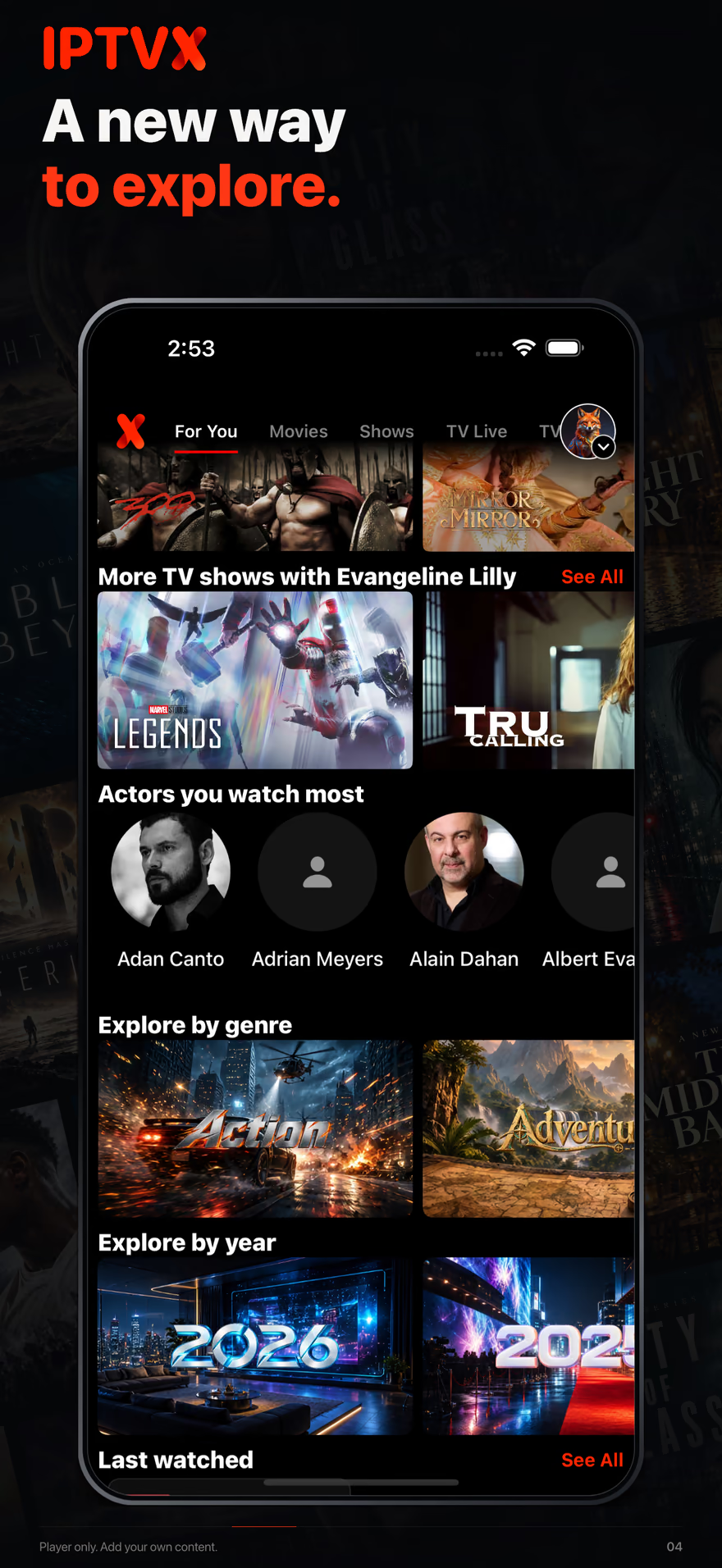
For You is no longer just a place to return to something you know. Its new discovery rows and collections turn your library into a personal starting point: related movies and shows, more with actors you watch, genres you may like, new episodes, highly rated titles and award-recognized movies. The mix depends on your viewing history, the titles in your playlist and their available metadata—not a fixed set of identical rows for everyone.
- Dozens of new discovery rows and collections
- Go beyond the provider’s category list. For You brings together recommendations, actor discovery, genres, years, ratings and recognition so the same library can reveal many different starting points.
- Recommendations rooted in what you watch
- A movie you watched can lead to related movies; watching episodes can lead to related shows and more titles with their actors. Genre recommendations also draw on your viewing history. These are distinct discovery routes, not one generic recommendation list.
- A different mix for each library
- Rows appear when there are suitable available titles and metadata. With no viewing history yet, genre and popular-actor discovery still give you places to start. Explore adds collections by genre, recent year and older period; empty rows are left out.
Apple TVOpen For You in the top navigation. Move down to discover the different rows, then move left or right through a row. Press Select on a movie or show to open its page; select an actor, genre or year card to explore that collection.
iPhone / iPadTap For You. Scroll down to discover the rows and swipe horizontally through their cards. Tap a title for its page, or an actor, genre or year to open a collection.
02 / 7 · What is new
Explore: browse by genre and year
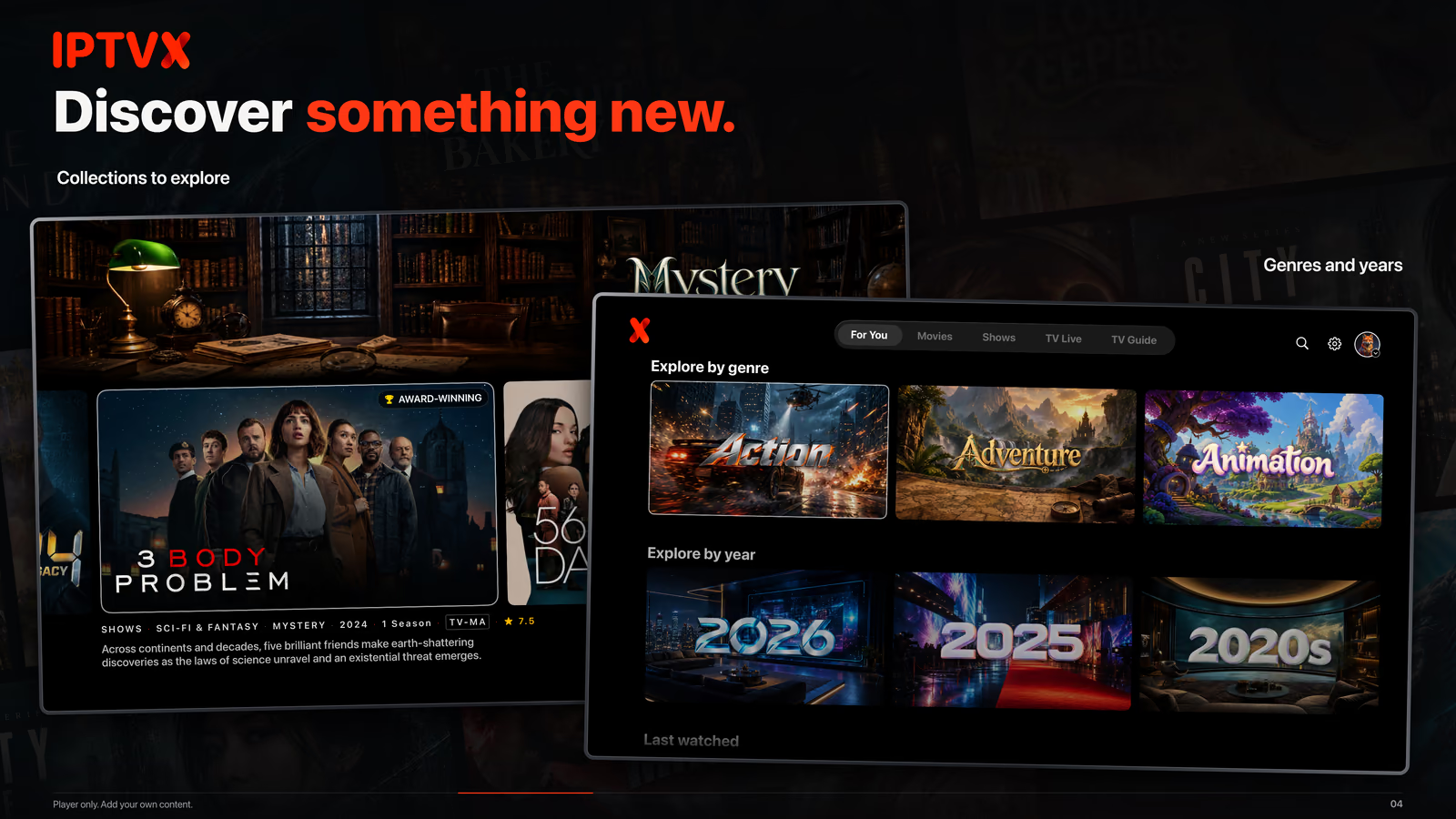
Explore turns genres and years into illustrated entry points. Open a card to reach a collection of matching movies and shows from your current playlist. Recent years have their own destinations; older titles can be explored by period. You move from a visual idea to the titles that match it.
- Collections, not another catalog
- Genre and year cards open matching library titles. Supported genre/year tags on a Movie Page provide another entry into those collections.
Apple TVIn For You, select a genre or year card and press Select. Browse the resulting collection; the visible heading explains the selected scope.
iPhone / iPadTap a genre or year card to browse its collection. Explore cards open their own destination; they do not use the personal-row See All/Expand command.
03 / 7 · What is new
Recommendations that explain the connection
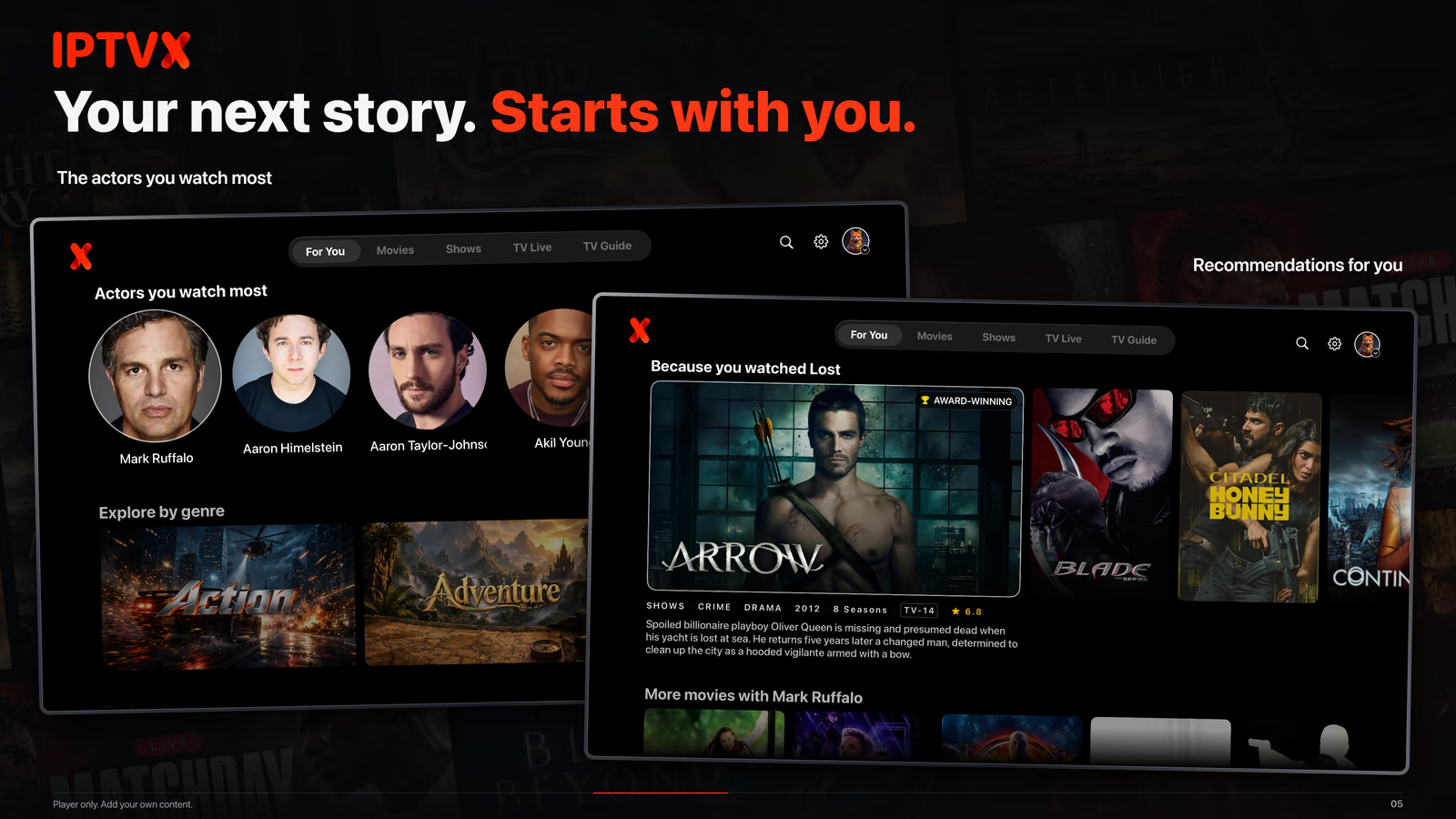
For You offers several reasons to try something different, rather than one indistinguishable list. Your viewing history, actors, genres, ratings and available awards metadata lead to different discovery rows. Rows without suitable titles are left out.
- Because you watched…
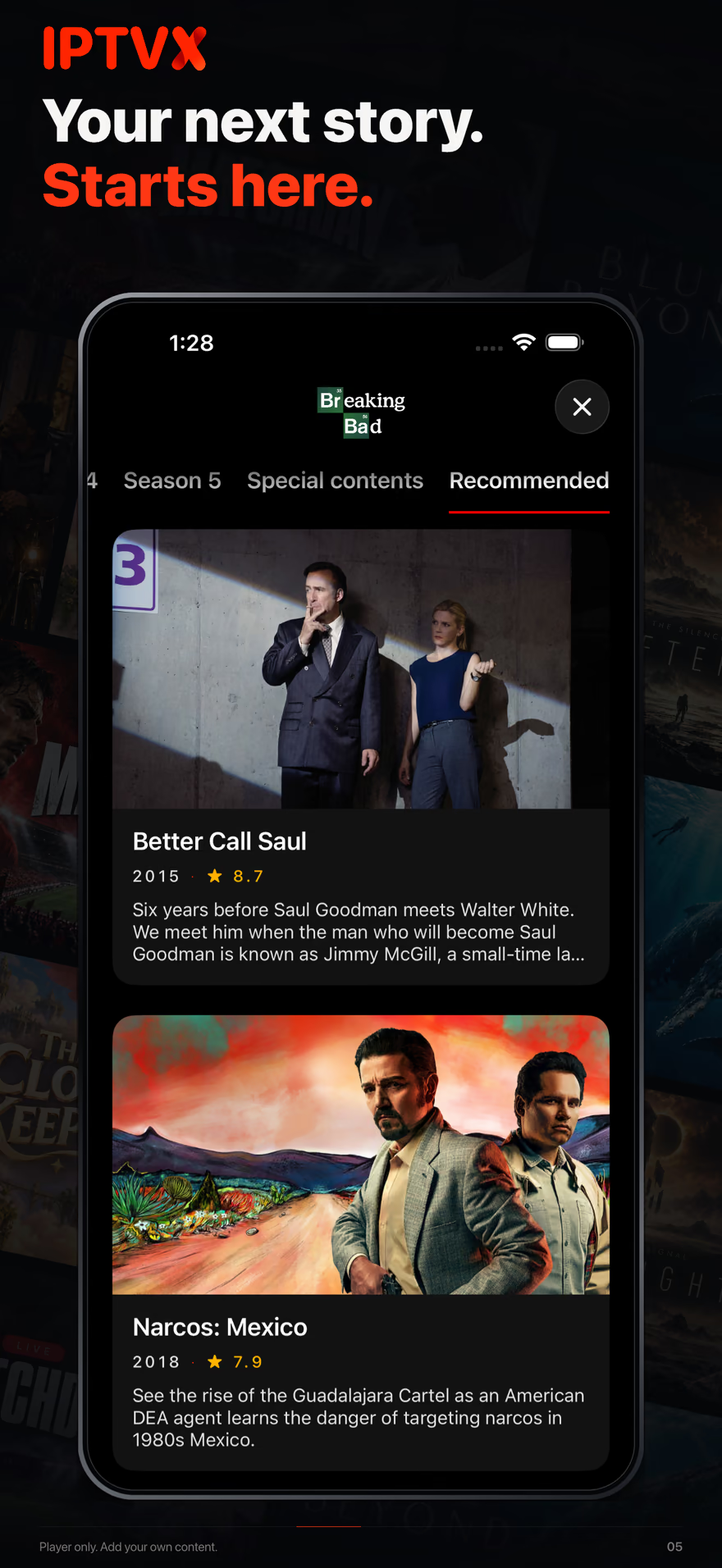
- Separate movie and show recommendations start from something you have watched. The heading names the title behind the connection, helping you understand why another available movie or series is being suggested.
- More movies or shows with an actor
- Discover other available titles with actors from your viewing history. Movie and show suggestions have their own actor-based routes; watching episodes also helps shape the show recommendations.
- A genre you may like
- Your viewing history helps identify genres for a discovery row of available titles you have not watched. Without history, For You can start from genres represented in your library.
- The actors you watch most
- A row of actor portraits gives you another starting point based on your viewing. Open an actor to explore their filmography. With no history yet, popular actors provide a discovery alternative.
- Most Rated and Highest Rated
- Discover titles through two different signals: how many votes they have received and how highly they are rated. These are discovery selections, not a promise of two fixed, strictly ordered charts.
- Award-Winning and Critically Acclaimed
- Discover movies recognized by the awards information available for your library. Winning recognition and other meaningful awards recognition have separate rows, rather than being mixed into one generic ranking.
- New episodes for you
- A dedicated row brings back shows you have watched when your playlist reports new episodes. It follows your series history—not every recently updated show in the catalog.
Apple TVBrowse For You or move down to Recommended on a detail page. Selecting a recommendation opens that title; focusing it alone does not change your library.
iPhone / iPadOpen Recommended in a detail page or tap an actor in discovery. Recommendations retain the ordinary parental and access checks. Content explicitly marked watched is kept out of supported discovery rows, not removed from Favorites.
04 / 7 · What is new
Movie Page: the title takes center stage
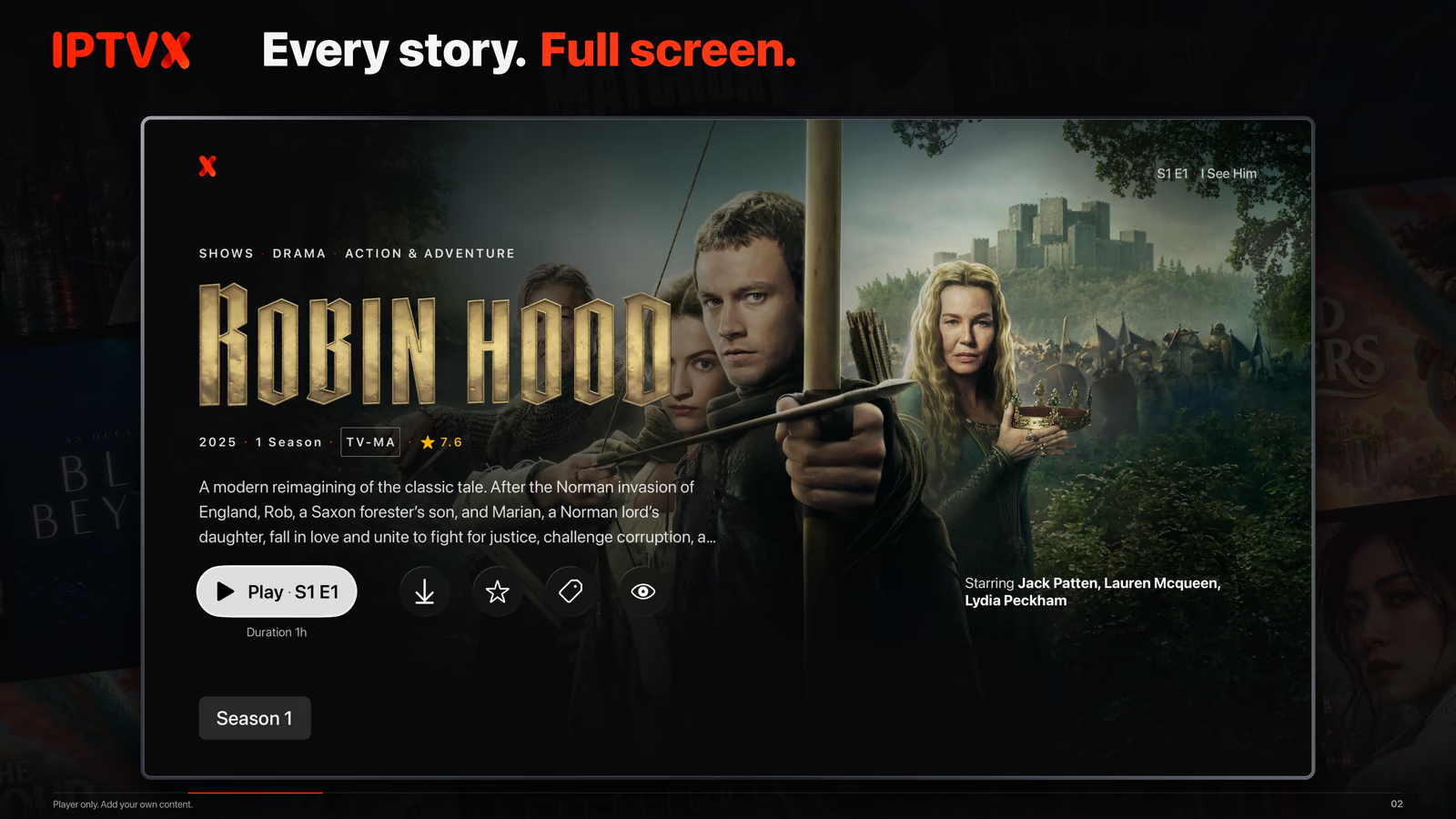
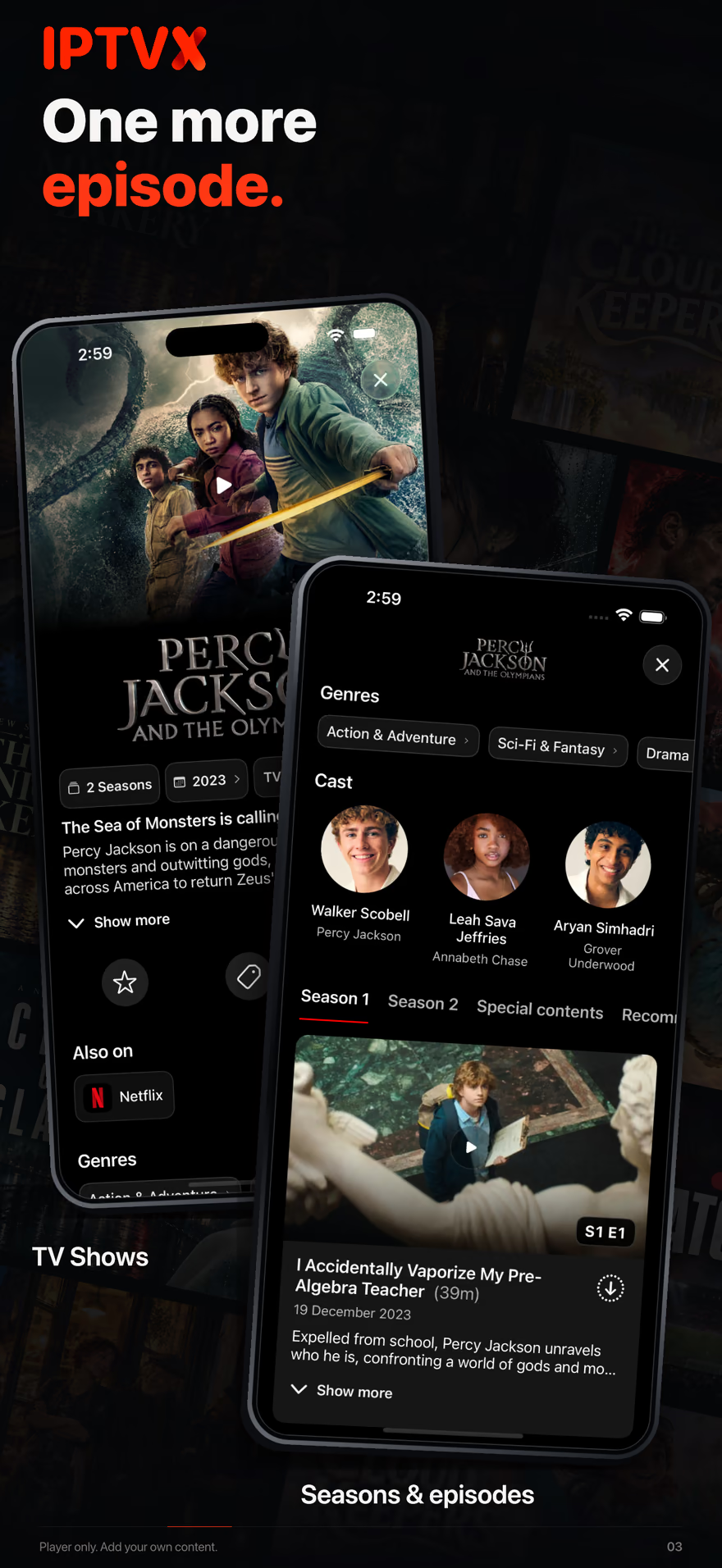
The redesigned Movie Page gives movies and shows a cinematic backdrop, their title artwork and a clearer hierarchy. Synopsis, available facts and the main Play or Resume action are easier to read together; personal actions sit separately, followed by the supporting content that exists for that title.
- Clearer title facts
- Year, runtime, available quality, age classification and a 0–10 score are presented compactly when known. The rating is information, not a button.
- A clearer next action
- Play/Resume has its own capsule. Favorites, tags and watched state use separate compact actions; continuation can show the actual episode and valid remaining time.
- More ways to explore from a title
- Browse available trailers and extras, cast, navigable genre/year tags and recommendations. Also on remains service-availability information, separate from the IPTVX playback action.
Apple TVSelect a title to open its cinematic page. Use Play/Resume to watch; move down to seasons, extras, cast, tags and recommendations where that content exists.
iPhone / iPadTap a title to open its detail page. Use the labeled play action to watch and the circular actions for favorites, tags or watched state. Scroll for the information and content panels.
05 / 7 · What is new
Series: seasons, episodes and extras, reorganized
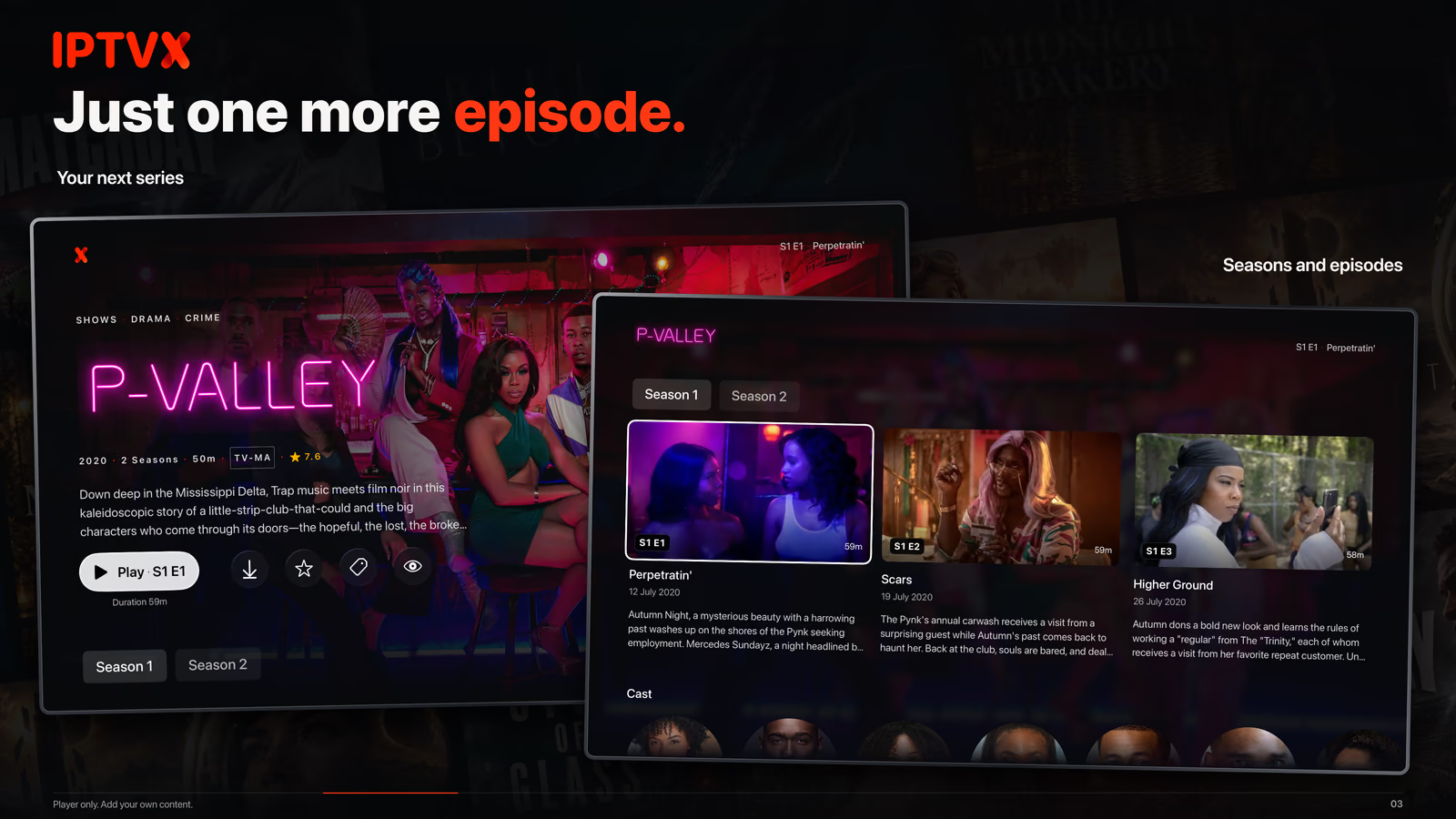
The series page now makes the relationship between a season, its episodes and your continuation clearer. Episode artwork, S/E codes and descriptions are grouped together. The season you deliberately choose stays selected while more information arrives.
- Different layouts, the same clear intent
- Apple TV puts season controls and episodes before extras, cast, tags and recommendations. On iPhone and iPad, seasons, special content and recommendations have separate panels. The Current Episode shortcut reveals your continuation without starting playback.
Apple TVMove to a season pill and press Select to change it: merely focusing a season does not select it. The Current Episode shortcut reveals the continuation episode without starting playback.
iPhone / iPadOn iPhone, season tabs, special content and recommendations are separate panels. Tap the desired tab; they are not all appended below every season.
06 / 7 · What is new
Search, redesigned from query to results
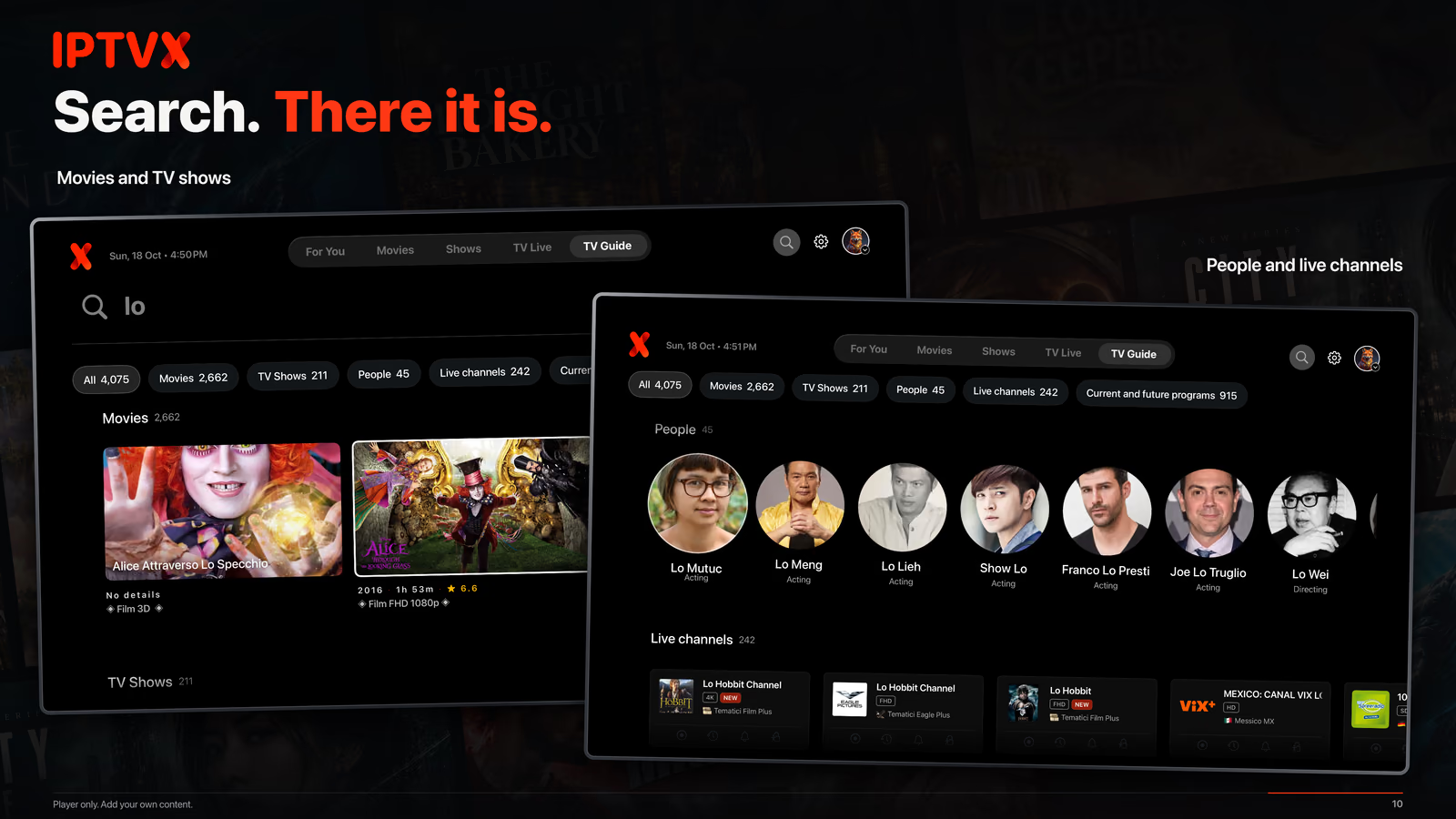
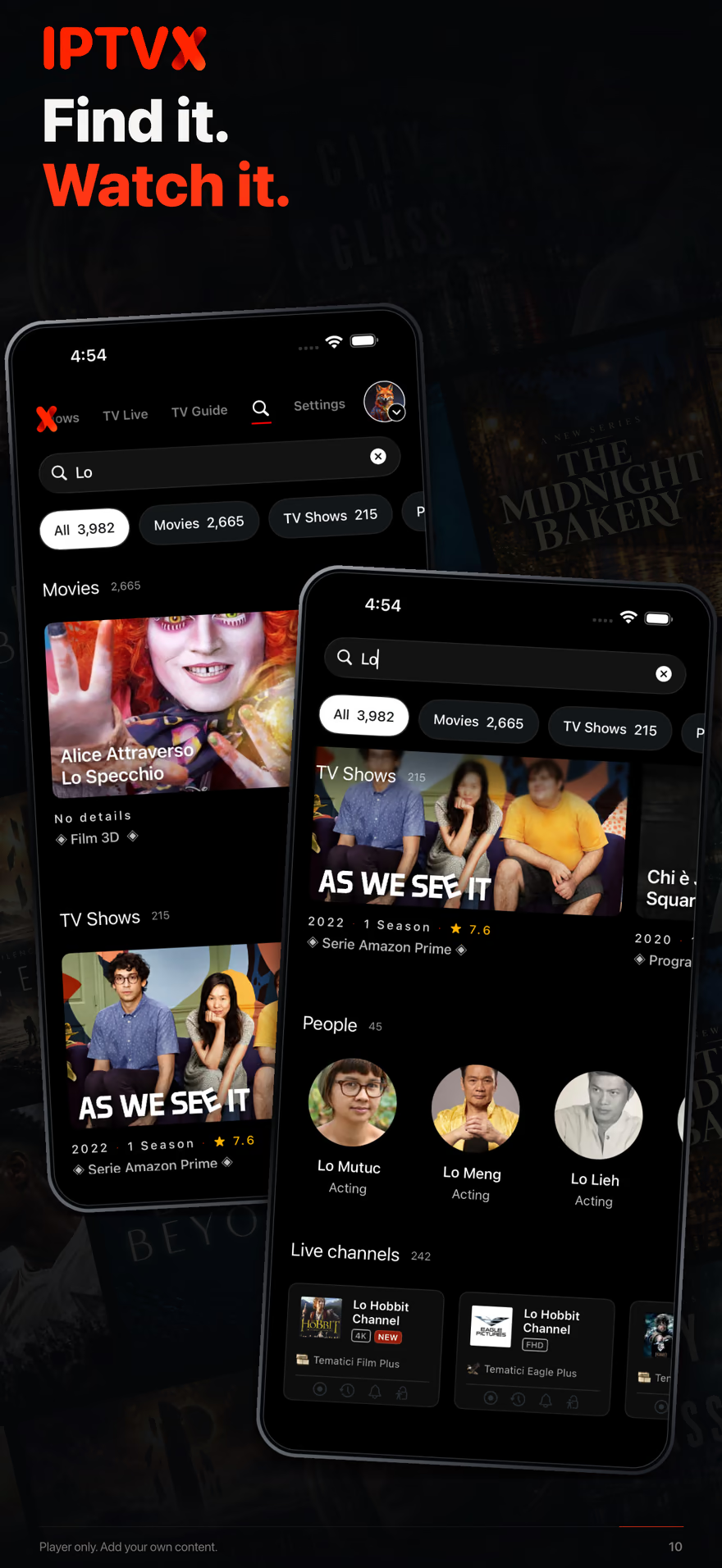
Search now has six scopes: All, Movies, Shows, People, Live and Programs. Counts tell you where the matches are; a selected scope opens its full result grid. Landscape VOD artwork, title logos and recognizable actor portraits bring the new visual language into the results.
- All for the overview; filters for the full list
- All groups the nonempty result types. Choose Movies, Shows, People, Live or Programs for that domain’s complete grid: filters replace the old Search See All route.
- Results you can recognize
- VOD cards combine artwork with available year, runtime, rating and playlist-category information. People uses portraits rather than treating actors as movie posters.
- Controls that stay with your search
- Filters remain available while browsing results. Clearing the query hides their unused space until you search again.
Apple TVEnter a query, then activate a filter to browse that result type. Focus alone does not choose it. Use the filters—not a Search See All button—to view a complete result domain.
iPhone / iPadType a query and tap the desired filter. Open a result for its normal detail or playback route. Clearing the query hides the filter area until there is another query, rather than leaving an empty block.
07 / 7 · What is new
A new Downloads screen on iPhone and iPad
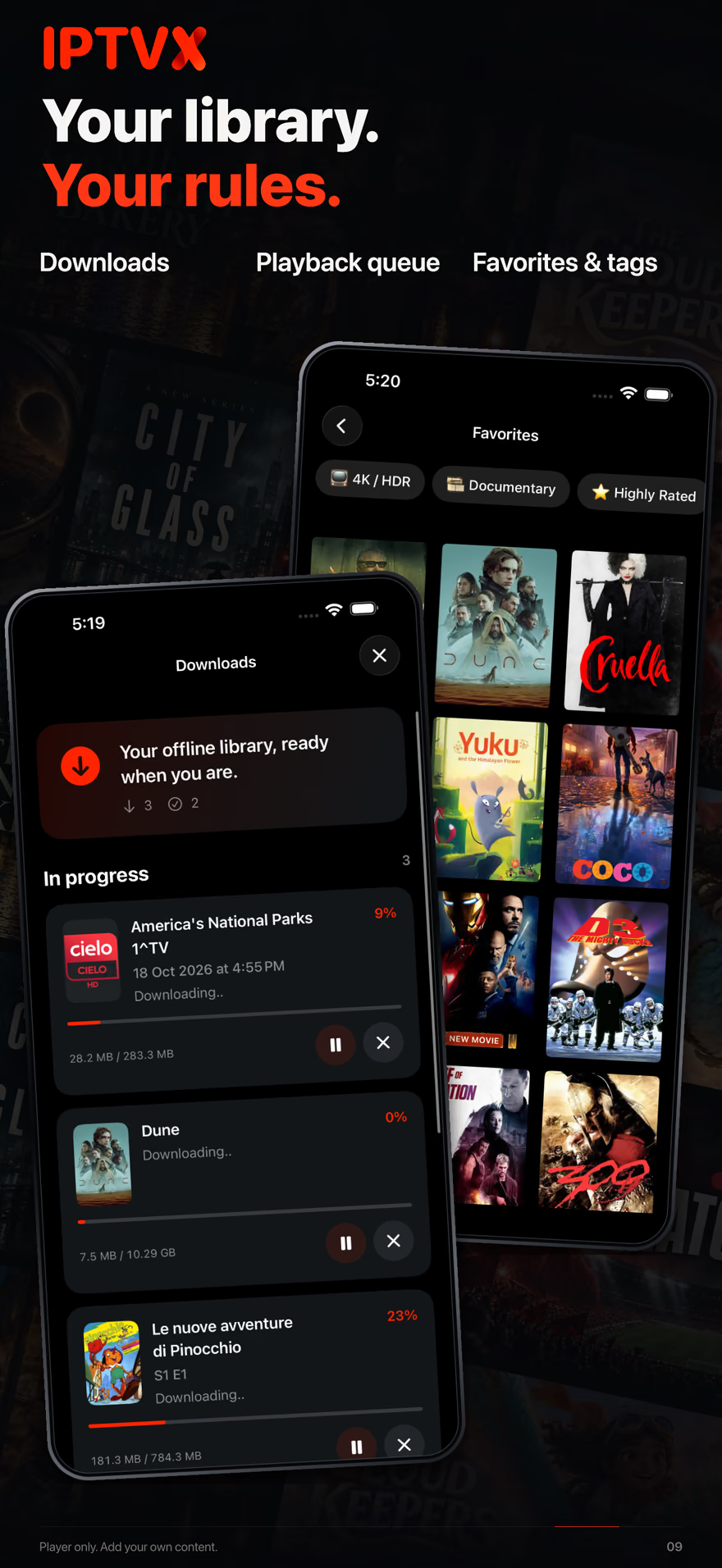
On iPhone and iPad, the redesigned Downloads destination brings active transfers and completed offline titles together. Movie and show covers help identify an item; episode or archive details remain separate. Progress and transfer controls are easier to follow without mixing the queue with the completed library.
- Transfer management in the same destination
- Inspect progress, pause or resume an eligible transfer and open completed titles for offline details. This Downloads redesign is for iPhone and iPad, not Apple TV.
Apple TVThis redesigned Downloads destination is for iPhone and iPad. It is not an Apple TV download manager.
iPhone / iPadLong-press a compatible VOD or open its actions and choose Download. Open Downloads to inspect progress or pause/resume a transfer. Open a completed title for its offline details.